On this page
Content reviewed for v0.179.0. See changes since your version.
How It Works
AI is off until you choose a provider. After that, ThreeStrands sends a conversation only when you click a button marked with the sparkle icon, unless you turn on Automatic Briefs. It sends directly from your computer to the provider you choose, using your own API key. There is no ThreeStrands server in between.
Set Up a Provider
- Open Settings → AI Provider.
- Choose a Provider: OpenAI, Anthropic, OpenRouter, Fireworks, or Custom Endpoint for any compatible service.
- Paste your API Key and click Save Key. It's stored in your operating system's credential store.
- Click Test Connection.
- Optionally open Models and Usage to choose a Reasoning Model and a cheaper Fast Model. A Custom Endpoint needs a model name.
Once a provider is chosen, AI shows up in reading, writing, and contacts. Under Show AI In, switch off any area you don't want it in. Under Automatic Briefs, choose whether to prepare briefs as you read: Never (the default), only for People I've Emailed, or for All Conversations.
ThreeStrands keeps one API key at a time, so enter a new key when you switch providers.
Features
Reading
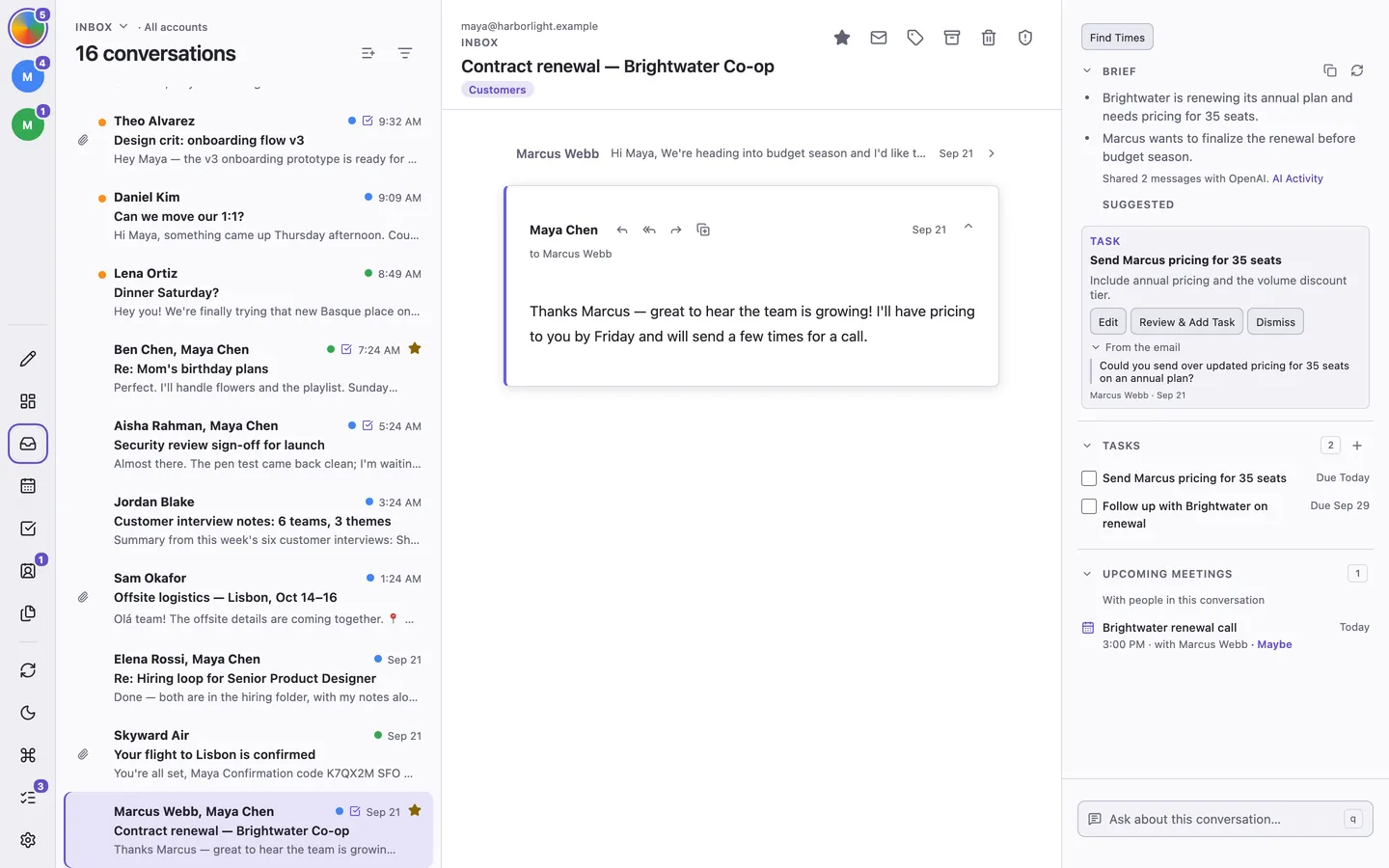
- Brief — press i for a summary of what's new in the open conversation, with suggested tasks and meetings. A brief covers the messages since your last reply or your last brief, and reads earlier messages only for context, so it doesn't repeat what you already know. When it helps, the last line recaps the earlier conversation. Each suggestion shows the evidence from the email, and nothing is added until you click Review & Add Task. Press Shift + a for suggestions alone. Click the Brief heading to collapse it.
- Calendar events — Get Brief and Ask About This Conversation can find each event announced in an email at its stated date and time. Dated events without a time become all-day events; review before adding.
- Ask About This Conversation — press q to ask about the open conversation. Questions only look beyond it when you tick Search all mail for that question. Use as Reply turns an answer into a draft. Ask "When am I free Thursday afternoon?" and the answer shows open times from your calendar, already limited to the days and hours you asked for.
- Automatic Briefs — prepares the brief once you stay on a conversation for a few seconds. They skip mailing lists and conversations with no one else in them.
Writing
- Draft Reply — in the composer, press ⌘/Ctrl + j to draft a reply from a short instruction.
- Draft Review — click Review below your message and feedback appears right away. Nothing changes in your draft until you click Apply Revision. If the feedback misses the point, add a goal for that email and click Review Again. What was sent under the feedback shows exactly what went to your provider. To avoid explaining yourself in every goal, fill in your profile for each account under Settings → Writing Profile: About You says who you are and what you do, and Review Instructions says how you want drafts reviewed. Draft Review shows the profile with the rest of what it sends, and suggests using a fact from it only as a suggestion you can see.
- Find Times — beside Get Brief at the top of the side panel, reads the conversation and your draft for when to meet, such as "next week" or "Thursday afternoon", and the app then finds open times on your calendar. Select times while reading and choose Draft Reply With These Times, or insert them into an open draft. Your calendar is never sent to the AI provider.
Contacts
- Enhance With AI on a contact suggests profile details from your email for you to accept.
Buttons marked with the sparkle icon, such as Get Brief and Review, are the ones that send something to your AI provider. After a brief, a line under it says how many messages were shared and with which provider.
Areas you switch off disappear from the app, along with their commands. Until you choose an AI provider, the Brief section beside a conversation is the one place that offers Set Up AI.
Usage and Cost
The usage panel under Settings → AI Provider → Models and Usage shows requests, tokens, and estimated cost for today and the last seven days. Add your model's prices to get accurate estimates; OpenRouter reports exact costs itself.
Activity, below it, lists recent requests: which feature sent them, the conversation's subject, how many messages, and the model and tokens used. It's kept on this device and never includes email text.
What Is Shared
| Feature | Trigger and context | Your control |
|---|---|---|
| Brief and suggestions | On request; conversation messages, with earlier messages as context | Review proposed tasks and events before adding |
| Automatic Briefs | Opt-in after staying on a qualifying conversation | Choose Never, People I've Emailed, or All Conversations |
| Thread chat | Your question, conversation and chat context, open task context; other mail only with Search all mail | Choose attachment text to share; review replies and proposals |
| Draft Reply | Your instruction and reply context | Review and send the draft yourself |
| Draft Review | Subject, authored text, goal, and account Writing Profile | What was sent shows the payload; apply revisions yourself |
| Find Times with AI | Conversation and draft to interpret the requested meeting range | Calendar availability is computed locally; calendar contents are not sent |
| Enhance With AI | Requested contact enrichment from correspondence | Accept suggested profile changes yourself |
Draft Review excludes recipient fields, separately stored quoted history, and attachments. Text you put inside the authored draft itself is part of what it reviews. A Brief's sharing line names the provider and number of messages; a brief can be limited to recent messages rather than the entire history.
Share an Attachment in Chat
Type @ in Ask About This Conversation and choose a readable attachment. Selecting it shares extracted text when you send the question and makes it available to the rest of that chat. Attachments are not automatically shared just because they belong to the email. Unsupported files cannot be selected; large files may be truncated, and the answer may miss later content. Review the listed sources and do not assume an answer covers a whole file.
Provider Accounts and Billing
Requests go directly to the provider you choose. Its API billing, model access, and data-handling terms apply; a consumer chat subscription may not include API access. Check those terms in your provider account before sharing sensitive content. Estimated app costs are not a bill or spending cap. Use AI troubleshooting for connection failures.