On this page
Content reviewed for v0.179.0. See changes since your version.
The Triage Loop
Single-letter shortcuts work whenever you're reading and no text field has focus.
- Move through conversations with j and k.
- Press e to archive a conversation once it's done.
- Reply with r, reply all with a, or forward with f.
- Turn anything that needs follow-up into a task with d (see Tasks and Goals).
Archiving shows a Conversation archived notice with Undo. Press Shift + e (Mark Not Done) to bring a conversation back to the inbox.
Reopen a long email you were partway through, such as a newsletter, and it picks up where you left off. Your place is kept on this computer for two days, and the email opens at the top again once you've read to the end or a new reply arrives.
Everyday Actions
| Action | Shortcut |
|---|---|
| Archive | e |
| Mark Not Done | Shift + e |
| Trash | # |
| Mark Spam | ! |
| Toggle Read | u |
| Toggle Star | s |
| Manage Labels | l |
| Undo Last Action | z |
The keyboard shortcut reference lists everything else.
Batch Actions
Press x to select the current conversation, or use the checkboxes. A toolbar shows how many are selected and offers Archive, Trash, Mark Spam, Mark Read or Unread, Star, and Labels for all of them at once.
Filters
Open Filters above the list to narrow the current mailbox. Each filter has a shortcut:
- Unread — Shift + u
- Starred — Shift + s
- Important — Shift + i
- No Reply — Shift + r, conversations you haven't replied to yet
Split Inboxes
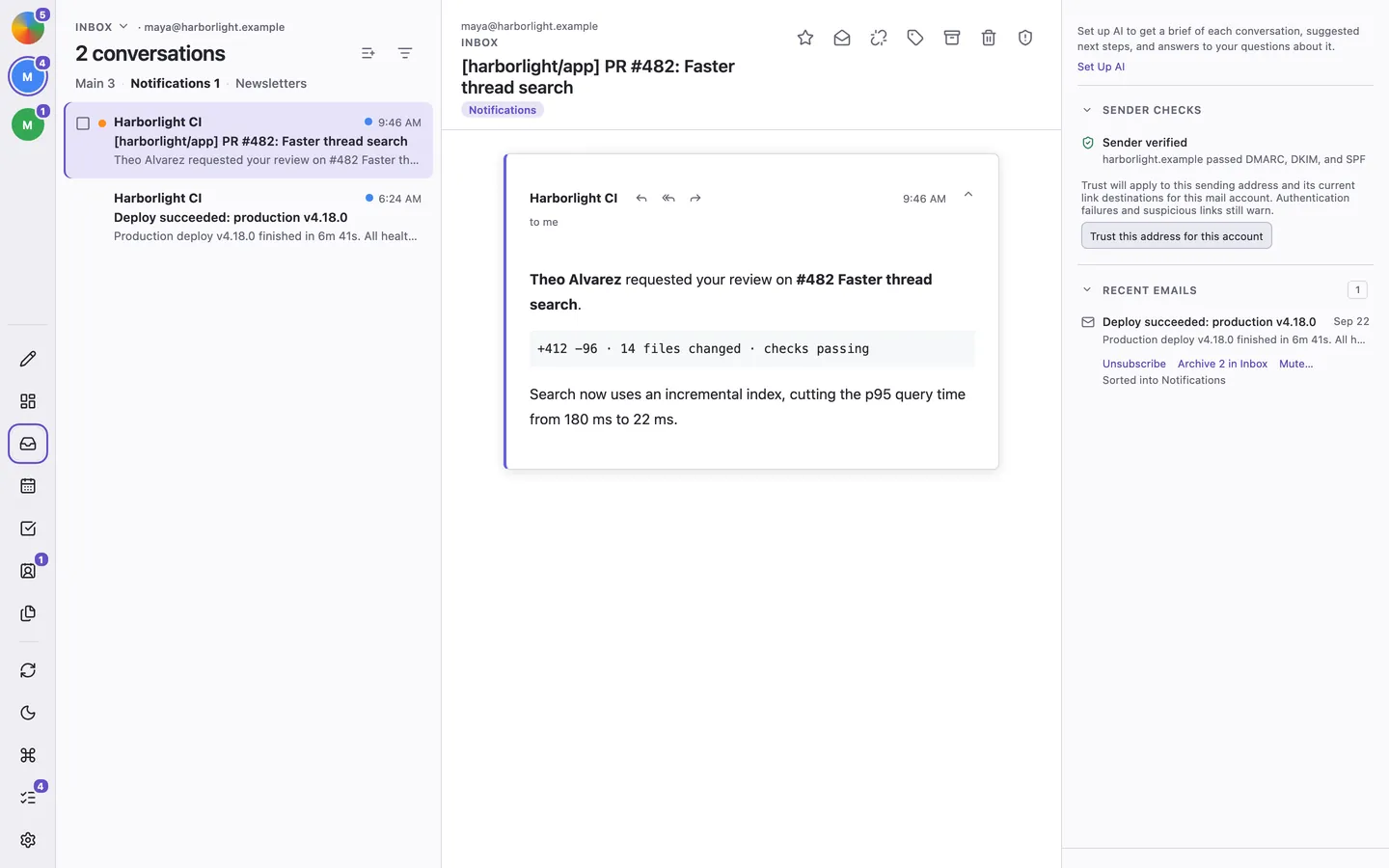
Split Inboxes move high-volume mail into its own tab, so the main inbox stays focused on people.
- Click the Add Split icon beside the conversation count, or open Settings → Split Inboxes.
- Give it a name, choose the account, and pick Match By: Sending Domain, Label, or Address Contains.
- Click Add Split Inbox.
Press Tab and Shift + Tab to move between tabs. Each split belongs to one account, so tabs appear when that account is in focus rather than in the combined view of all accounts. Deleting a split never deletes mail.
Search
Press / in Mail to search local messages and, when online, older mail on the server. See Search Your Mail for operators, examples, Trash and Spam searches, and suggestions.
Moving Around
- 0 opens Today, and 1–5 switch between Mail, Calendar, Tasks, Contacts, and Files.
- g then i, a, t, d, o, or s goes to Inbox, All Mail, Trash, Drafts, Outbox, or Sent.
- Escape goes back after you jump from one conversation to another, for example from a task or a contact, and returns to Today after you open an email or event from it.
Today
Plan your day with Today: agenda, unread mail groups, open tasks, and You said you would reminders. Press 0 to open it.
Inbox Zero
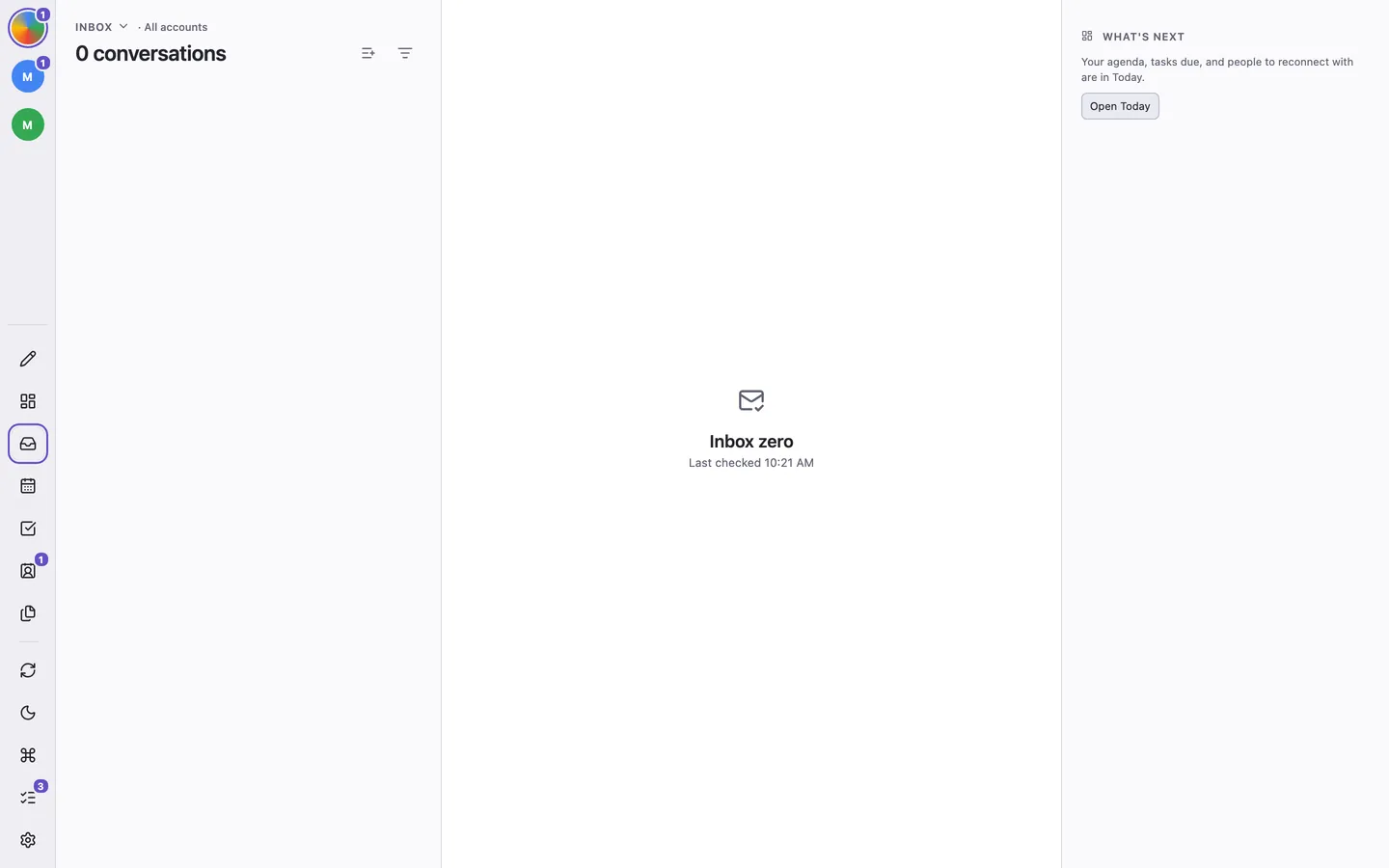
An empty inbox shows Inbox zero and when that account was last checked, or whether it needs reconnecting or could not be checked. The side panel links to Today for your agenda, tasks, and Keep in Touch reminders. If filters hid every conversation, use Clear Filters to bring them back.
Newsletter Controls
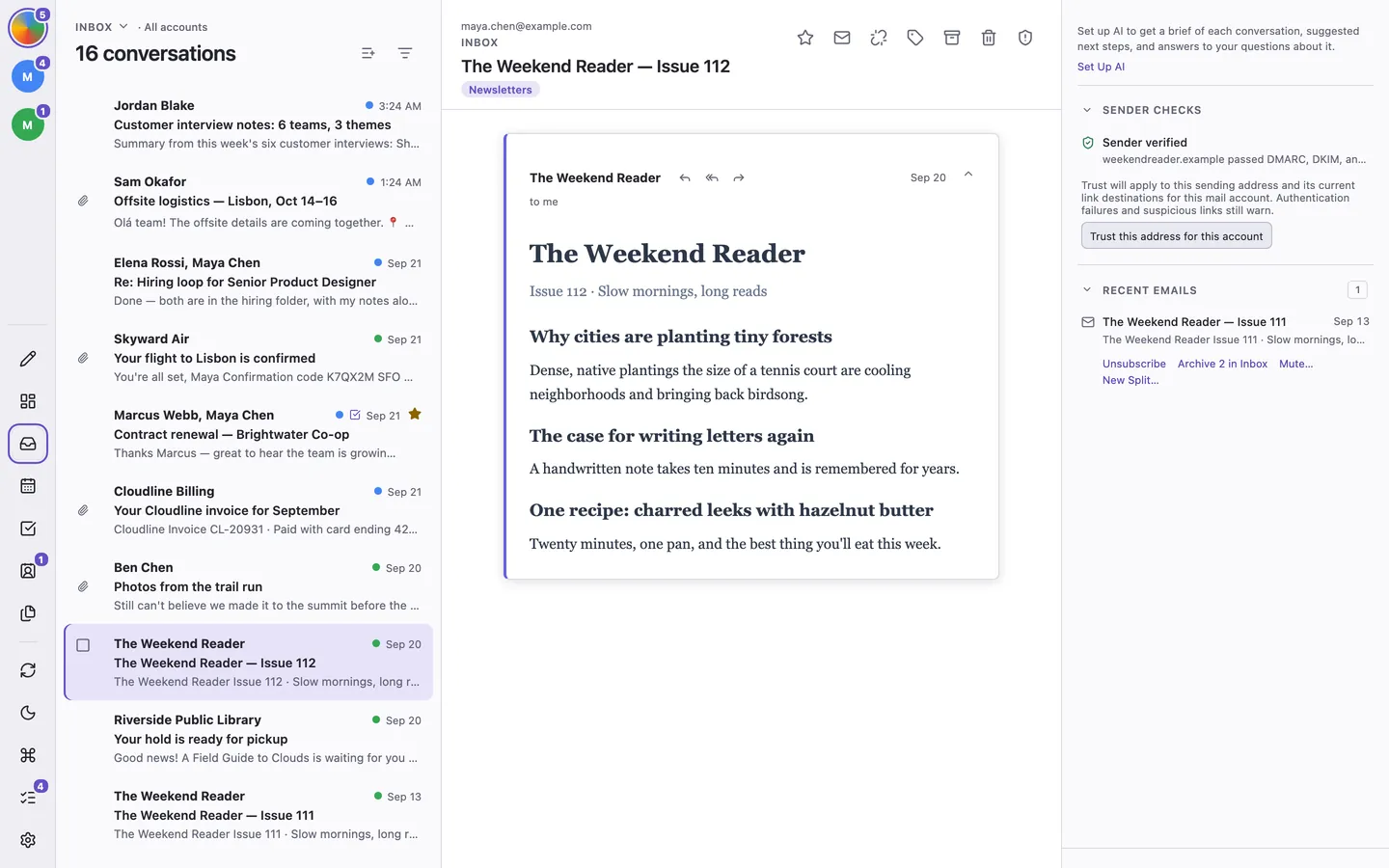
Newsletters and bulk mail show the sender’s Recent emails beside the message. Use Unsubscribe, Archive N in Inbox, Mute…, or New Split… below the list. Archive clears that sender’s existing inbox conversations, with Undo. Mute marks new mail read and archives it as it arrives; it can also archive existing inbox mail. Manage or unmute senders in Settings → Muted Senders. Muted senders are shared through encrypted sync when enabled; update all your devices to use them.
Unsubscribe
When a message supports it, press ⌘/Ctrl + u or use the reader's unsubscribe button. ThreeStrands asks before it sends a one-click request, opens an unsubscribe email, or opens the sender's page.
Trust and Attachment Warnings
ThreeStrands checks each message for common email tricks, entirely on your computer, and shows what it finds beside the sender's name:
- A small gray shield marks a Known sender: someone you write to or have saved as a contact, whose email is verified as coming from them. It is not a promise that every message is safe.
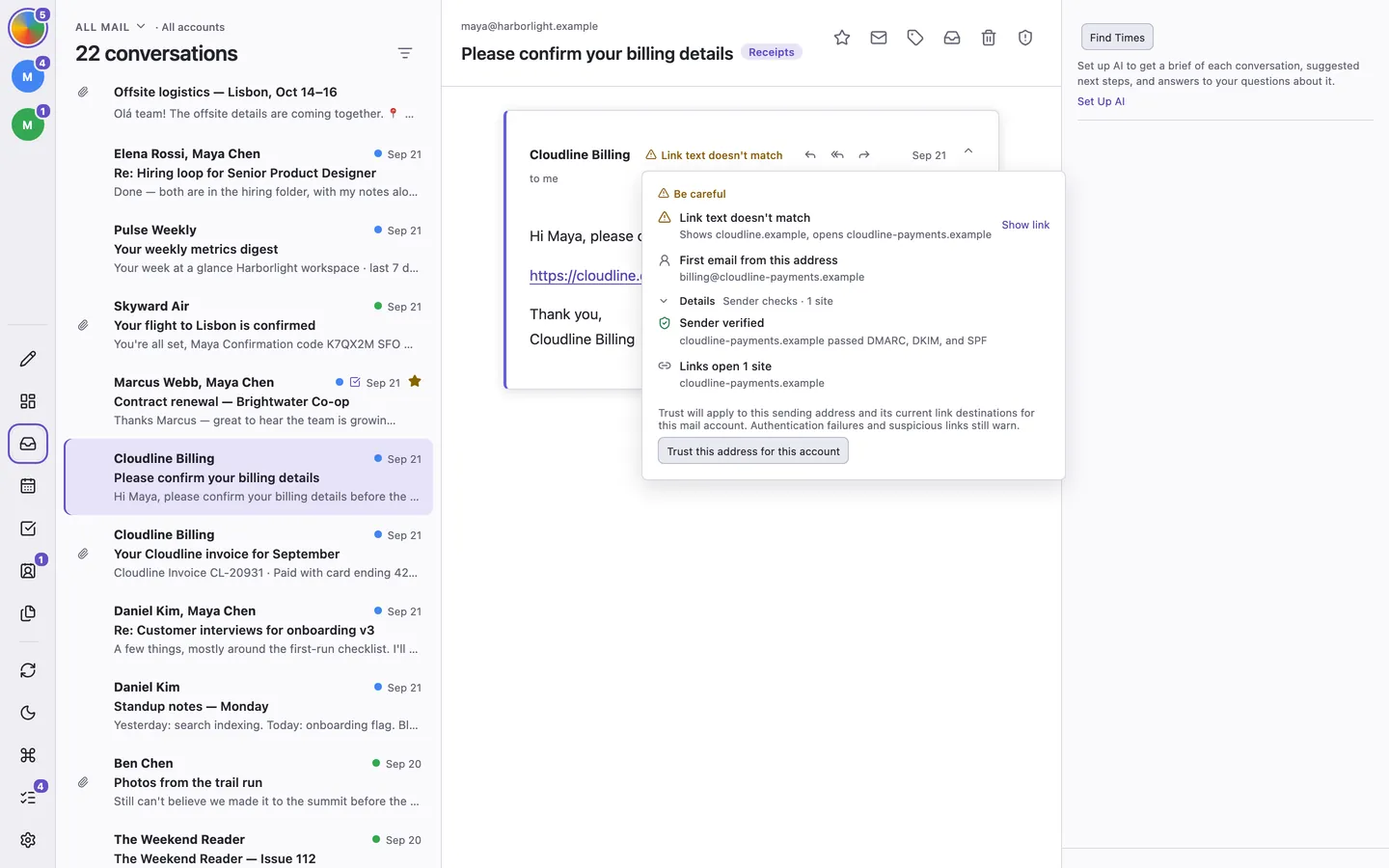
- An amber Be careful warning names what looks wrong, such as a familiar name used by a new address, a lookalike domain, a subject line that disguises words with look-alike letters, a misleading link, or a risky attachment from someone you have not written to.
Hover over the shield or warning to see every finding and the sender details, or click it to keep them open. Sender warnings appear above the message itself; familiar-name warnings list both the sending and previously seen addresses. The warning beside the sender’s name does not repeat those details. For newsletters and other bulk mail with nothing to warn about, the side panel shows a Sender checks section with the same details.
If a warning is about mail you expected, such as a colleague writing from a new address, review the stated scope and choose Trust this address for this account in the warning's details, or in the warning above the message when it's about a borrowed name. ThreeStrands remembers that sending address and its current link destinations for this mail account, including a Reply-To address when shown, so matching verified mail gets a quieter assessment. Changes in how the mail is delivered and other security concerns still warn. Confirmations sync to your other devices for the same mail account; choose Forget confirmation in the side panel's Sender checks section to undo one.
Choose Show link to find the link in the message. Details expands the mail server’s sender checks, the sites links open, and tracking images. Links in folded quoted history are left out of these warnings. Remote images remain blocked until you allow them, subject to your privacy settings.
Risky attachments, including programs, macro-enabled Office files, disk images, attached web pages, and disguised filenames such as invoice.pdf.exe, show a warning and reason before opening. They are never previewed.
Files
Find an attachment in Files, including filters, local stars, and safe previews on macOS and Windows.