On this page
Content reviewed for v0.179.0. See changes since your version.
Open Files
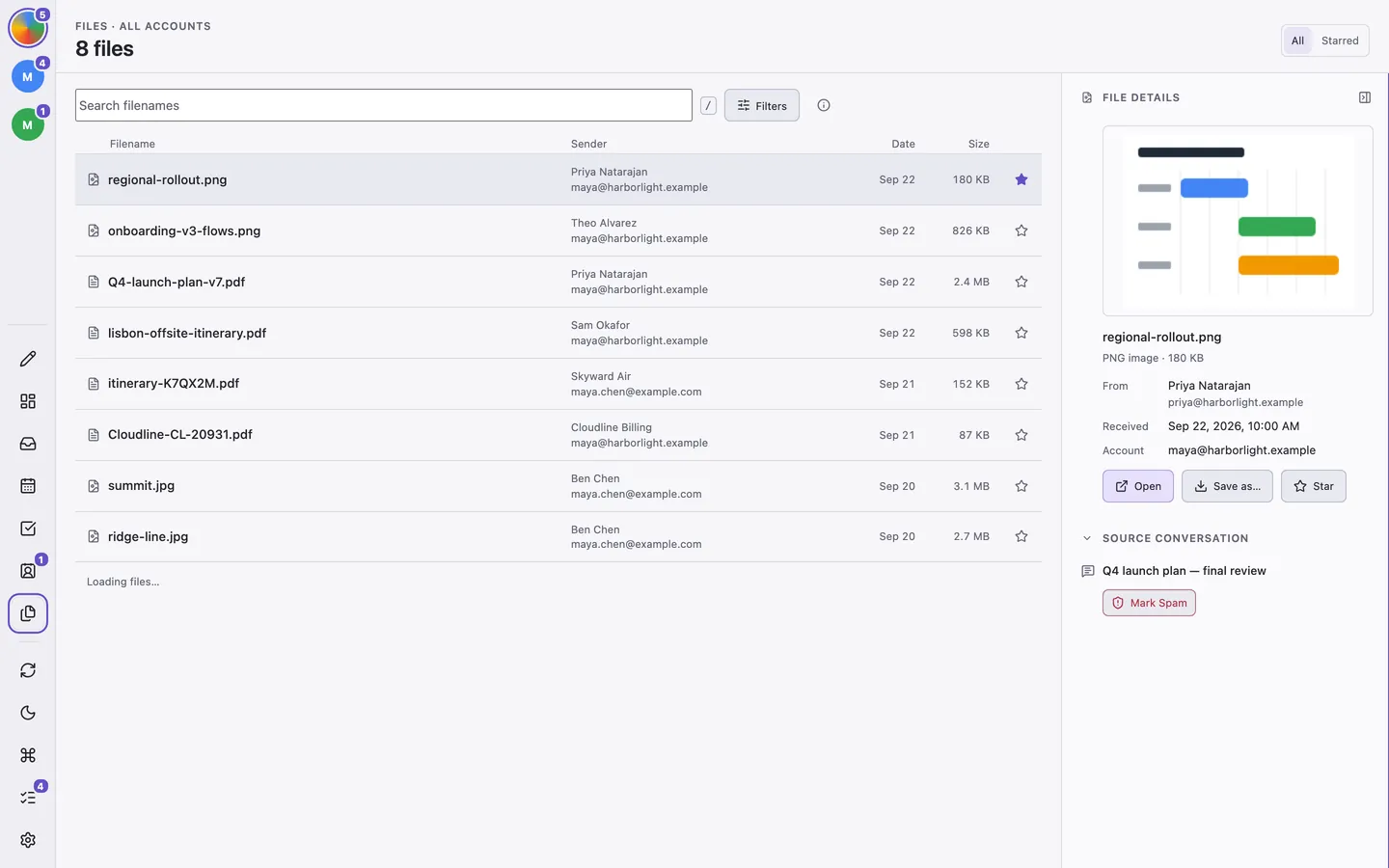
Click Files in the sidebar or press 5. Files lists attachments from mail on this device, including archived conversations. It is not a separate cloud drive or a complete index of every file on your mail server.
Find a File
- Search by filename or sender.
- Narrow the list by sender, file type, direction, account, or date.
- Select a result to see its details and source conversation.
- Open or save the file, or follow the source conversation to read its context.
If a file is missing, search for the email first. Older mail may need an online server search before its attachments appear locally. Mark Spam removes that email's files from Files, and Undo restores them.
Preview and Open Safely
On macOS and Windows, a selected safe file can show a preview above its details. Click the preview to open it. Linux does not have this preview backend. A missing preview can also mean the file's type or size is unsupported.
Risky attachments, such as programs, macro-enabled Office files, disk images, attached web pages, and disguised filenames, are never previewed. Opening them shows a warning and its reason. A preview or absence of a warning is not a guarantee that a file is safe.
Star Files You Return To
Star a file to find it again quickly. Stars stay on this computer and are not transferred or replicated. Starring a file does not keep an offline copy or prevent the source mail from leaving the local cache. See Privacy and Local Storage.