On this page
Content reviewed for v0.179.0. See changes since your version.
Connect Google Calendar
Calendar connects separately from mail and works alongside Gmail or IMAP accounts.
- Open Settings → Calendar Accounts.
- Click Connect Calendar and sign in to Google in your browser.
- Under Calendars shown in the sidebar, choose which calendars to show and pick their colors.
- Under Calendars used for availability, choose which calendars count when ThreeStrands looks for free time. Primary calendars are used by default, and holiday calendars are always included when available. This doesn't change which calendars are shown.
With two or more calendar accounts, move them up or down with the arrows. The Calendar sidebar follows the same order.
Google Calendar is the only calendar provider today. CalDAV is not yet supported.
Schedule
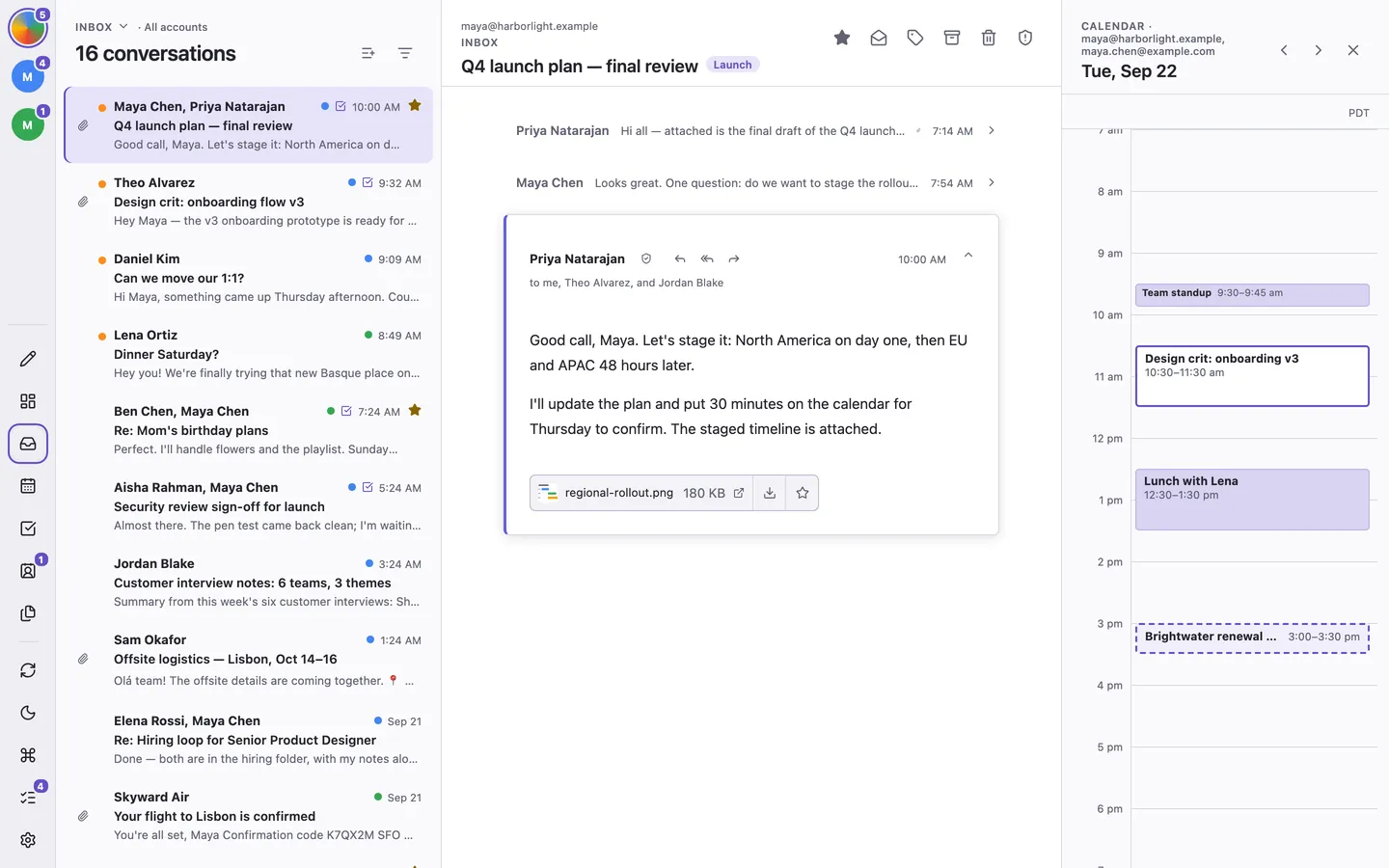
Press t to switch the column on the right of your mail between the conversation's details and the day's schedule, and - or = to move between days. ThreeStrands remembers which one you chose, even after you visit another view or restart the app. Set your timezone and working hours in Settings → Availability. A day can have several blocks, such as 9:00–12:00 and 13:00–17:00; suggestions leave the lunch gap free. Drive Time Buffer, at the bottom of that page, reserves time before and after timed events with a location when suggesting times or checking conflicts.
Find Times Beside a Conversation
Find Times works without AI, using your calendar and working hours. Connect a calendar first and set your timezone and working-hour blocks in Settings → Availability.
- Open a conversation or a reply draft.
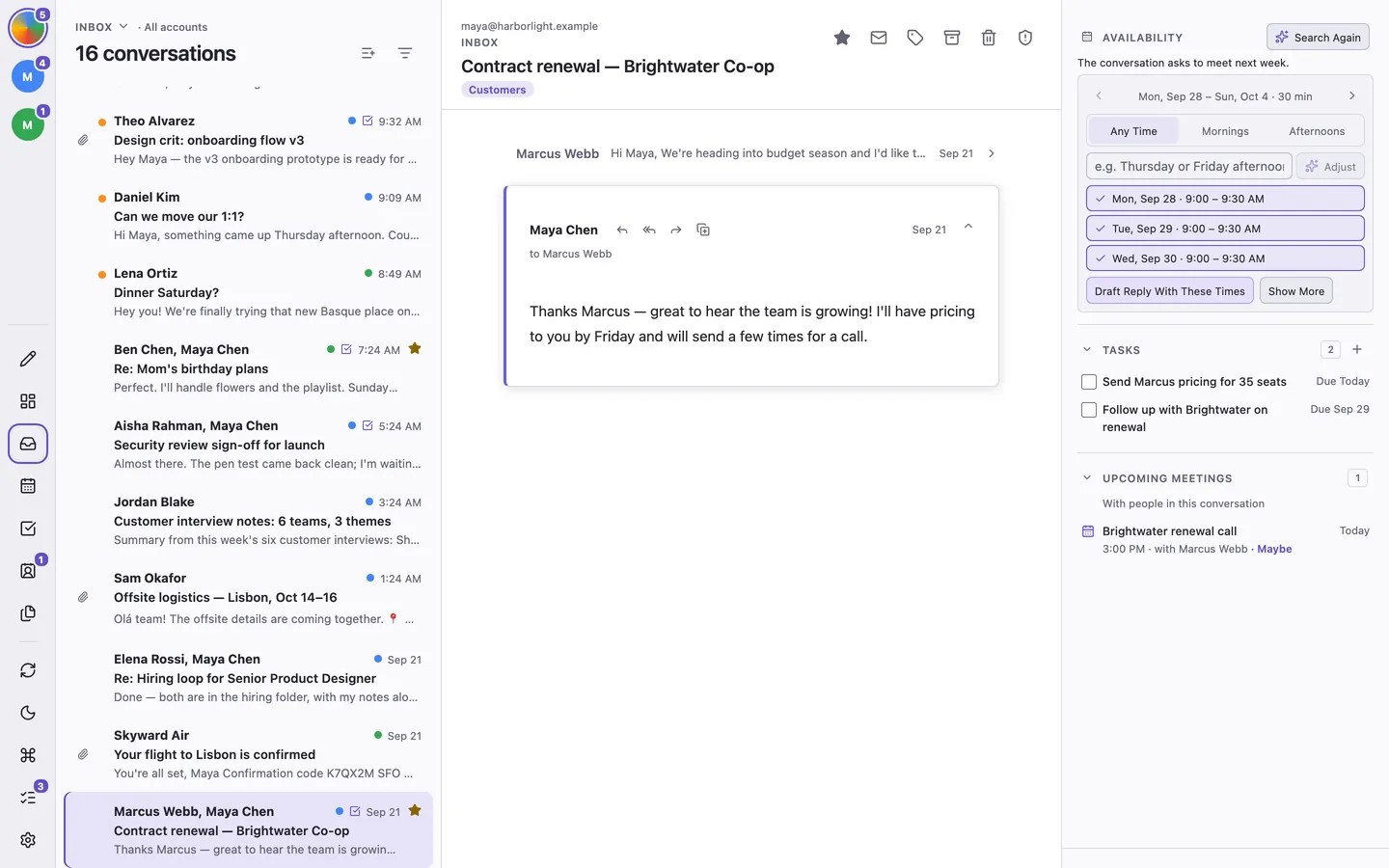
- Click Find Times at the top of its side panel, beside Get Brief. It appears when the conversation has a meeting to arrange, offered times, or a task to schedule, and whenever you're writing a reply.
- Choose times from the offered slots.
- While reading, click Draft Reply With These Times to start a reply. While composing, use Insert These Times.
- Review the wording and recipients before sending.
Adjust Dates and Times
Choose Mornings or Afternoons to narrow the slots, Later for the following week, or Show More for more times on the same days. With an AI provider and Writing enabled under Show AI In, Find Times reads the conversation and draft to understand requests such as “next week.” Type “Thursday or Friday afternoon” and click Adjust to change the search.
If a brief already suggested a meeting, Find Times starts with those dates. Search Again reads the conversation afresh. Meeting suggestions and Ask About This Conversation answers offer the same calendar choices. Your calendar is not sent to the AI provider.
Check Times Someone Offered
With an AI provider, when an email offers several meeting times, such as "1. Tuesday at 10 or 2. Wednesday at 3", its brief picks them up and Find Times lists each option with its number from the email. Every exact option is checked against your calendars, and each is marked Free or Conflict, or Outside your usual hours. Conflicts, evenings, and weekends stay in the list so you can see why a time doesn't work.
- Select the free times you want to accept.
- Click Draft Reply With Selected Times, or Insert Selected Times while composing. The times are checked again first; if your calendar changed, the list updates for you to review.
If the email doesn't name a timezone, change Assuming timezone to the sender's. Open From the email under an option to see its original wording. Check Again repeats the check, and Find Other Times searches your usual hours instead. If the offered times couldn't be verified, the brief still appears with a warning, and Find Times retries.
Include Coworkers
When writing to people at your work domain, Include coworkers lists them. Check who should be free too; the app checks their primary calendars alongside yours. A failure names the calendar and account; Calendar check details explains why. Unknown availability is not a promise that someone is free.
Use Different Hours for Each Account
If you meet at different times for different parts of your life, such as work hours on your work account and evenings for a personal one, keep a profile for each:
- In Settings → Availability, click Add Profile. The new profile starts with your current hours.
- Name it, then set its working hours, Default Duration, and Drive Time Buffer.
- Under Account Defaults, choose the profile each mail account uses.
Find Times, checks of times someone offered, and Find a time in the event editor then use the profile of the account the email or event belongs to. To use other hours for one conversation or message, choose a profile under Usual Hours in Find Times; the choice lasts until you quit ThreeStrands. Accounts without a profile of their own use the default one; Make Default changes which one that is. Timezone and Slot Increment are shared by every profile, and every calendar used for availability still counts as busy, whichever profile is in use.
Plan the Week
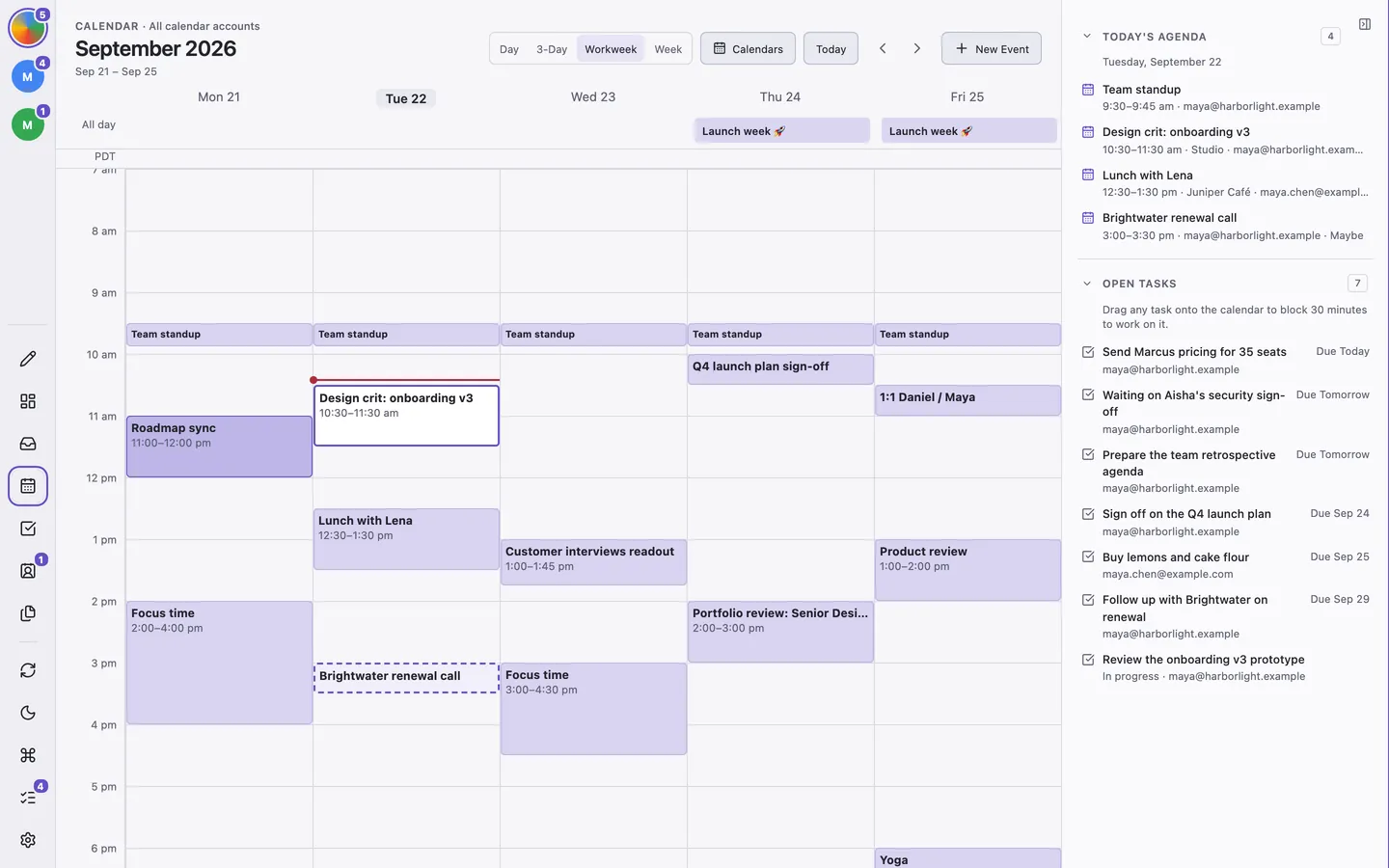
Press 2 for the Calendar view. Choose Day, 3-Day, Workweek, or Week. ThreeStrands remembers your choice. Today jumps back to the current date, and Calendars shows or hides individual calendars.
Create and Edit Events
Drag across the grid or click New Event. Add a title, times, location, the calendar, people to invite, and a description. Choose All day for an event without a specific time, then click Create event or press ⌘/Ctrl + Enter.
Invite People suggests your contacts and contact groups as you type a name or address. Press Enter or click a suggestion to add someone, or choose a group to invite everyone in it. Text that isn't an email address stays in the field with a note until you fix it.
When an email announces several events, Get Brief and Ask About This Conversation can offer each as an event at its stated time. Review each suggestion before adding it. A dated event without a time is added as all-day.
Click Find a time while creating or editing an event with guests to see each guest's busy times beside yours for the week, with Suggested times inside your working hours. Guests whose calendars can't be checked are marked Availability unknown.
Open an event you manage to edit or delete it. Moving the start moves the end with it, keeping the event's length. Choose Reschedule on a meeting you organize to open the editor with guests' availability already showing. Guests are notified of changes. Event details show who has answered: the guest count adds a tally such as "2 going, 1 not going", and each guest is marked Going, Not going, Maybe, or Awaiting.
Book Time for Tasks
Beside the week, under Today's agenda, Open tasks lists the tasks in your To Do and In Progress columns, overdue and soonest due first. Drag a task onto the calendar to block 30 minutes to work on it at that time on its account's calendar. Click Undo in the message that follows to remove it. Open the event and edit it to change its length. A task with time booked in the week you're viewing says when, such as "Booked Wed 10:00 am". Click a task instead to open New Event with its title, ready to pick a time yourself. Check the box beside a task to mark it done; it stays a moment, struck through, so you can uncheck it, or click Undo in the message that follows.
Open the booked event to see its task under Task, and tick it off there when you're done. Removing the event leaves the task alone, and finishing the task leaves the event on your calendar.
Answer Invitations
When you read an invitation email, its card in the side panel offers Accept, Maybe, and Decline, with your current answer selected, plus Suggest a different time, which prepares a reply with other times for you to review. Unanswered invitations say Not responded., and the card links the meeting and expands to show the event details.
In Calendar, open an event and choose Yes, No, or Maybe under Going?.
You can make ThreeStrands the app that opens .ics invitation files in Settings → Default Apps. On Windows, that opens Windows Settings, where you choose ThreeStrands. An opened invitation shows whether it's already on your calendar, lets you answer it, or offers Add to Calendar.