On this page
Content reviewed for v0.179.0. See changes since your version.
Start a Message
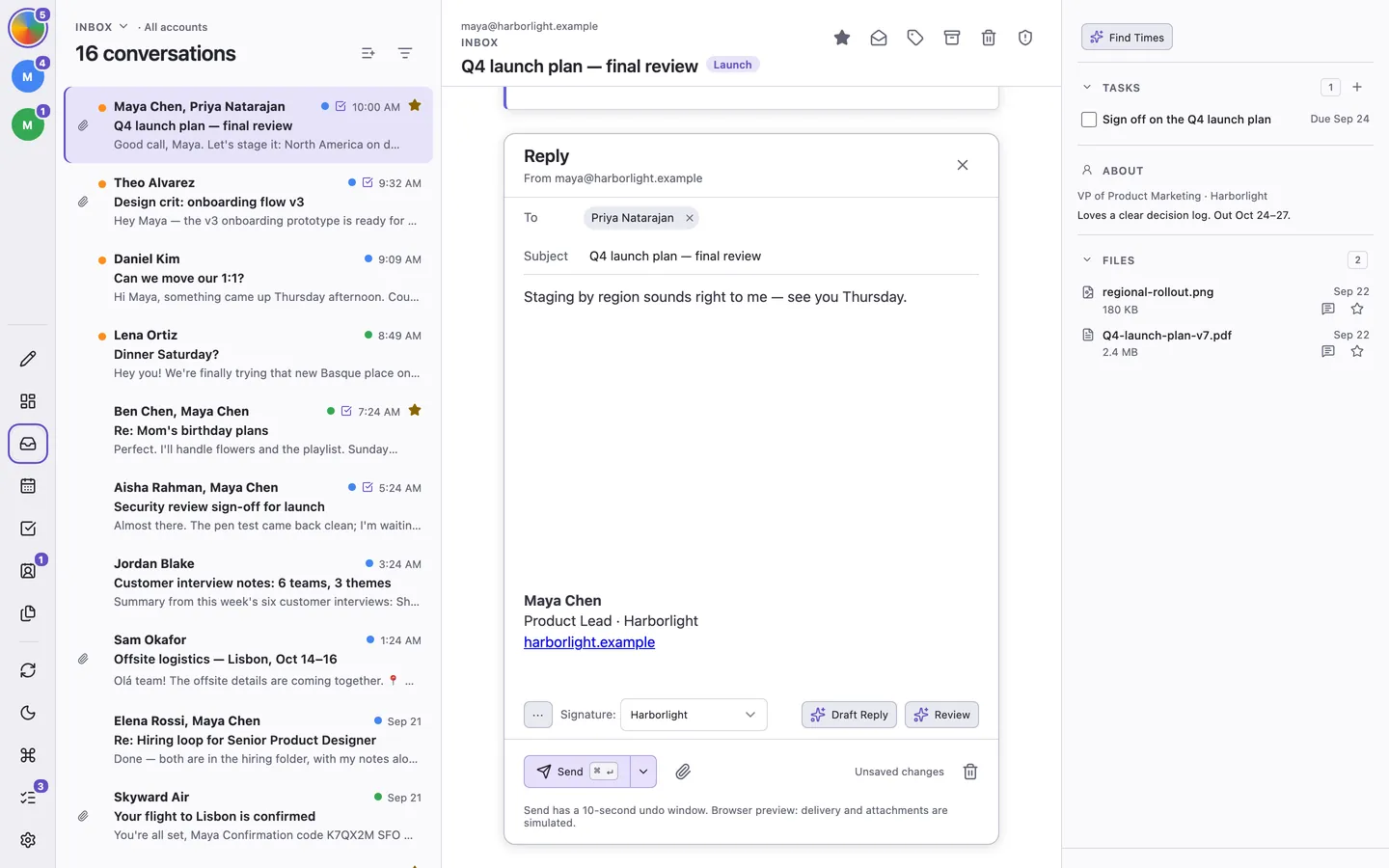
Press c for a new message, or r, a, or f to reply, reply all, or forward. Click the To label to show Cc and Bcc. With several accounts, choose the sender in From.
In a reply, click ··· below your message to show the quoted text, which you can edit like the rest of your message. A forward shows the original message below a Forwarded message bar. Click Edit on that bar to trim the message or add notes inside it. Editing simplifies some formatting and removes images loaded from the web. Restore Original brings back the message as you received it.
Drafts save automatically. On Gmail accounts they also save to your Gmail Drafts, and on IMAP accounts, including Proton Mail Bridge, to the account's Drafts mailbox, a few seconds after you stop typing. You can finish them in your mail provider's apps or in ThreeStrands on another computer, attachments included. Drafts you write in another app appear in Drafts here within a minute, and on Gmail a reply you started elsewhere shows at the end of its conversation with Resume Draft. If a draft changes both here and somewhere else before either is saved, the composer asks which version to keep. An IMAP account without a Drafts mailbox keeps its drafts on this computer. Press Escape to close the composer and keep the draft in Drafts (g then d).
Formatting
Formatting uses keyboard shortcuts:
| Format | Shortcut |
|---|---|
| Bold, italics, underline | ⌘/Ctrl + b, ⌘/Ctrl + i, ⌘/Ctrl + u |
| Link | ⌘/Ctrl + k |
| Text color | ⌘/Ctrl + Shift + c |
| Strikethrough | ⌘/Ctrl + Shift + x |
| Fixed-width | ⌘/Ctrl + Shift + m |
| Numbered or bulleted list | ⌘/Ctrl + Shift + 7, ⌘/Ctrl + Shift + 8 |
| Quote | ⌘/Ctrl + Shift + 9 |
| Code Block | ⌘/Ctrl + Shift + 0 |
Typing * starts a bulleted list and 1. starts a numbered one. Typing ``` on its own line and pressing Enter starts a code block, which keeps its spacing and line breaks and arrives in a fixed-width font. Press Enter on an empty last line to continue writing normally. Paste an image to place it inline.
Snippets
Snippets are reusable passages of text. Press ⌘/Ctrl + ; in the message body to Insert Snippet. Type to find one, or type a new name to create it. Write {first_name} in a snippet to insert the first recipient's first name. Manage snippets in Settings → Snippets.
Signatures
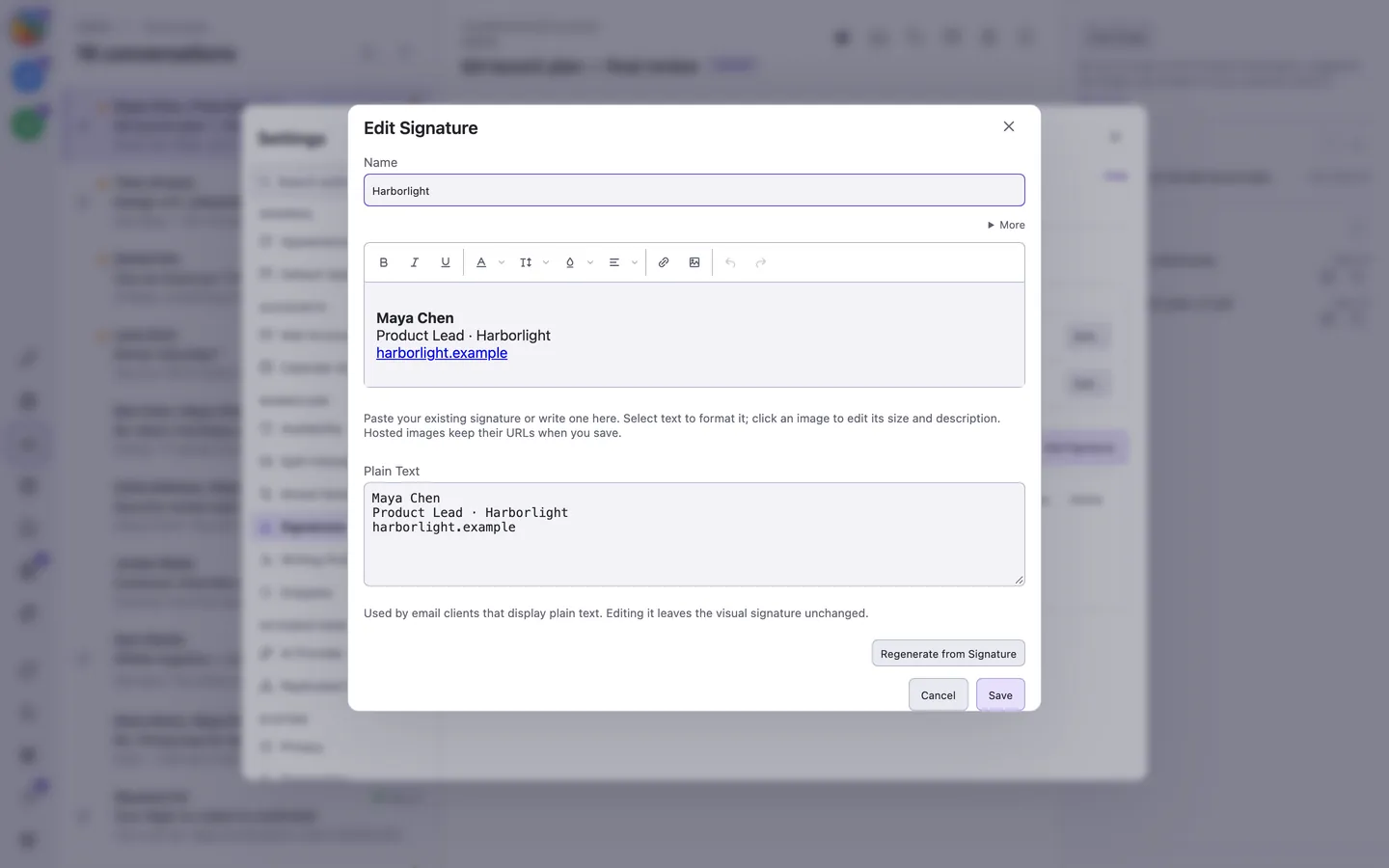
Open Settings → Signatures and choose Add Signature. Paste an existing signature or write one in the visual editor, then use the toolbar for formatting, fonts, and colors. Click a logo to edit its size and description. More → Import… imports pasted HTML or a file. Hosted HTTPS images keep their URLs by default; Load Images shows them while editing.
Import from Gmail… brings in a signature from a connected Gmail account. Preview it, give it a name, and optionally make it the default for new messages. Image Options → Embed Remote Images embeds small hosted images when you prefer that to keeping their URLs.
Edit the Plain Text alternative separately, or choose Regenerate from Signature to rebuild it from the visual version. In Default Signatures, choose Edit Defaults… for an account and set separate defaults for New Messages and Replies and Forwards, including No Signature. Sending addresses can use the account defaults or their own choices.
While composing, use the compact signature picker below the message to switch or remove a signature. Replies with no signature hide the picker. Your signature’s hosted images appear automatically while composing.
Attachments
Click the paperclip (Attach Files) to add files. Attachments can total up to 18 MB per message.
Before You Send
The panel beside your draft shows recipient history, shared files, related tasks, upcoming meetings, and free times. Press F6 to move between the draft and the panel.
Its Before you send section checks your draft on this computer and suggests fixes. It never blocks sending:
- The message says attached, but nothing is attached.
- There's no subject.
- An address looks like a typo of someone you've emailed before.
- It's your first email to someone, or the thread includes people outside your organization.
- You usually write to these people from a different account.
- Members of a group are visible in To or Cc, with an option to move them to Bcc.
With AI assistance turned on, click Review below your message to get feedback from Draft Review right away, using the writing profile you set for that account. Add a goal and click Review Again if you want it to aim at something specific. Draft Reply sits beside it in a reply.
Send, Undo, and Send Later
- Send with ⌘/Ctrl + Enter. You have ten seconds to click Undo Send.
- Send & archive in Send options sends and archives the conversation. Its shortcut is ⌘/Ctrl + Shift + Enter.
- Send later… in Send options, or ⌘/Ctrl + Shift + l. Choose the date, time, and timezone, then Schedule email.
Scheduled mail is sent from the computer where you scheduled it, so keep ThreeStrands running there and the computer awake and online. If the time passes while it's off, ThreeStrands asks you to confirm before sending.
Sent and Edit as New
Open Sent from the folder menu, or press g then s, to find conversations you have sent messages in, including messages sent from other devices or webmail.
On a message you sent, click Edit as New beside Forward, or press Shift + c. A fresh message keeps the subject, text, and attachments but clears the recipients, so you can send the same note to someone else. Forwarding a message keeps the forwarded copy in its original conversation.
Outbox
The Outbox (g then o) holds mail that has not finished sending: the undo window, scheduled sends, and messages that failed or need a delivery check. Finished sends move to Sent. Select an item to read it with its delivery status and actions above the message. From there you can reschedule, return a message to drafts, or send it now. If ThreeStrands can't confirm that a message was delivered, it offers Check Sent Mail rather than sending it again.